





by · MasLogin · November 25, 2025
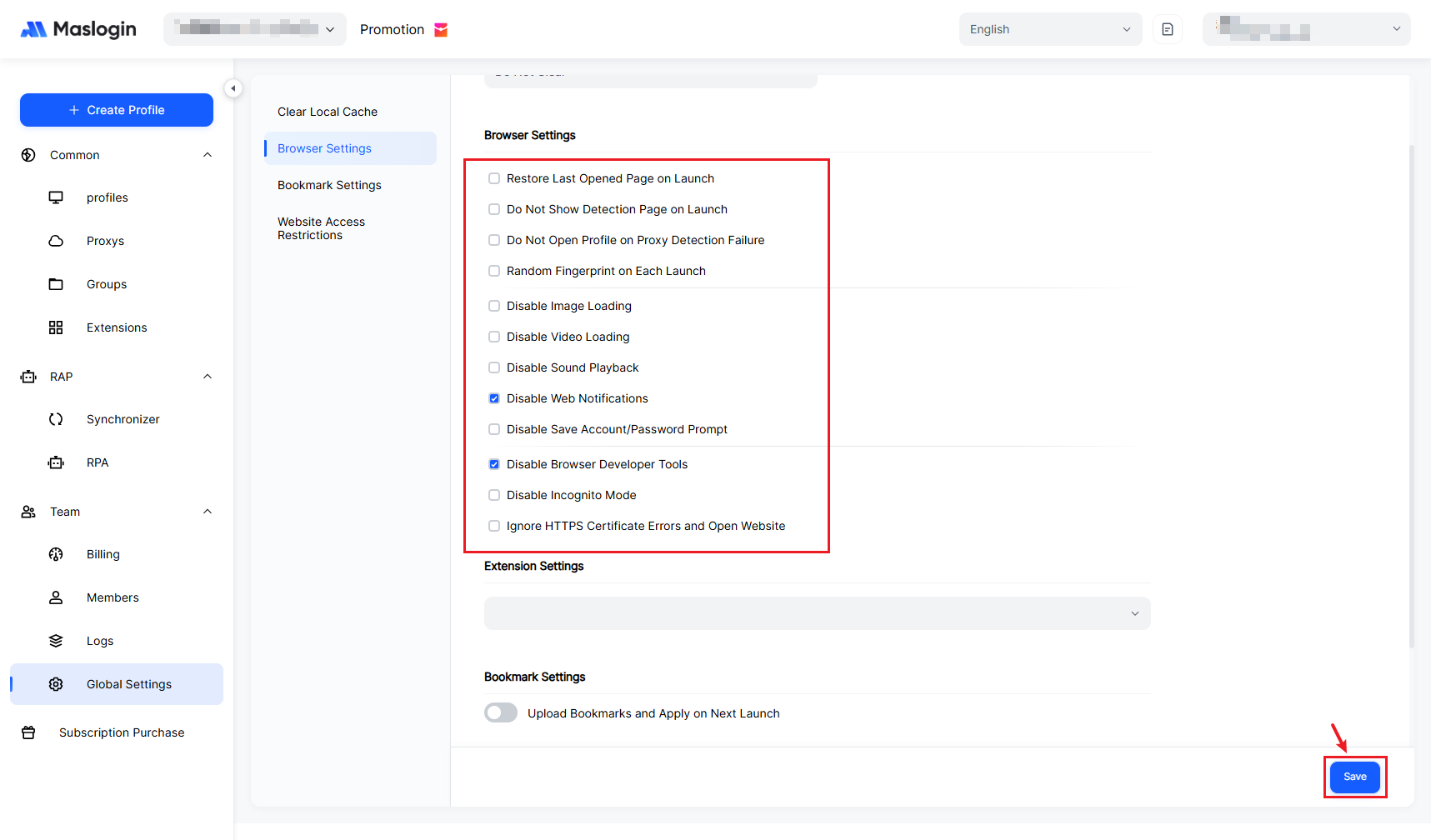
In Global Settings > Browser Settings, you can configure the default behavior of browser environments when launching and browsing, so it better matches your preferences.
1. Browser Settings entry
- Open and sign in to MasLogin. In the left sidebar, click 【Global Settings】 to find 【Browser Settings】.
2. Browser Settings overview
- Allows you to adjust browser behavior as needed to optimize your experience.
(1) Environment startup
- 【Restore Last Opened Page on Launch】: Each time you start an environment, it restores the pages and tab state from your previous session, making it easier to continue operating the same account.
- 【Do Not Show Detection Page on Launch】: The fingerprint detection notice page will no longer pop up on startup—ideal for users who already understand the rules and want faster access to work pages.
(2) Proxy & connection security
- 【Do Not Open Profile on Proxy Detection Failure】: If the proxy is unavailable or the check fails, the environment will be blocked from launching. This helps prevent accounts from going online with no proxy or the wrong IP, reducing ban and risk-control exposure.
(3) Fingerprint & multi-launch behavior
- 【Random Fingerprint on Each Launch】: Automatically switches to a new browser fingerprint when closing. The next time you open the same environment, it will run with the new fingerprint—useful for bulk testing or account warm-up scenarios that require frequent fingerprint changes.
(4) Page content loading controls
- 【Disable Image Loading】: The browser will no longer load page images, which can significantly reduce bandwidth usage and loading time, but some pages may not display fully.
- 【Disable Video Loading】: Prevents video content from loading and playing, reducing bandwidth usage—best for workflows that only need text content.
- 【Disable Sound Playback】: Disables website audio to avoid noise when multiple environments are running at the same time.
(5) Page interactions & pop-ups
- 【Disable Web Notifications】: Blocks browser notification prompts pushed by websites, reducing distractions and interruptions.
- 【Disable Save Account/Password Prompt】: Disables the built-in “Save password” prompt to avoid storing too many credentials in one environment and to better support account isolation.
(6) Debugging & privacy
- 【Disable Browser Developer Tools】: Prevents DevTools from being opened in an environment. This helps avoid accidental actions or team members viewing internal environment information—recommended for team collaboration and managed-use scenarios.
- 【Disable Incognito mode】: Blocks opening additional incognito/private windows, ensuring all actions stay within the controlled fingerprint environment and avoiding unmanaged extra sessions.
(7) HTTPS certificate policy
- 【Ignore HTTPS Certificate Errors and Open Website】: Automatically bypasses security warnings when encountering HTTPS certificate issues and opens the page directly. Use only if you trust the site and your business depends on it. For most users, keep this off to avoid risky websites.
3. Recommended settings
- If you’re a solo operator, consider enabling “Open the last pages when launching an environment” and turning off distracting pop-ups to improve day-to-day efficiency.
- If you’re a team admin or managed-service provider, prioritize “Do not open the environment if proxy check fails”, “Disable opening Developer Tools”, and “Disable Incognito mode” to reduce misoperations and security risks at the source.
- After changing global browser settings, remember to click 【Save】 to ensure all rules consistently apply in future sessions.